Getting started
From installation to your first campaign.
LeoMail runs on your computer and connects to the sending accounts you provide. Here is what to expect.
Choose a plan or request a trial
Buy a one-time license, or request a 1-day trial. Trial requests require your email and WhatsApp number and are reviewed manually. Our team contacts you through both channels.
Install and activate LeoMail
Use the installer supplied through your customer portal or trial instructions. Confirm compatibility with your operating system before buying. Enter your license key in the app. An approved trial lasts 24 hours from first activation.
Connect a sending account
Add your SMTP provider’s host, port, security settings, and credentials. Test the connection. You are responsible for provider charges, sending limits, and domain authentication.
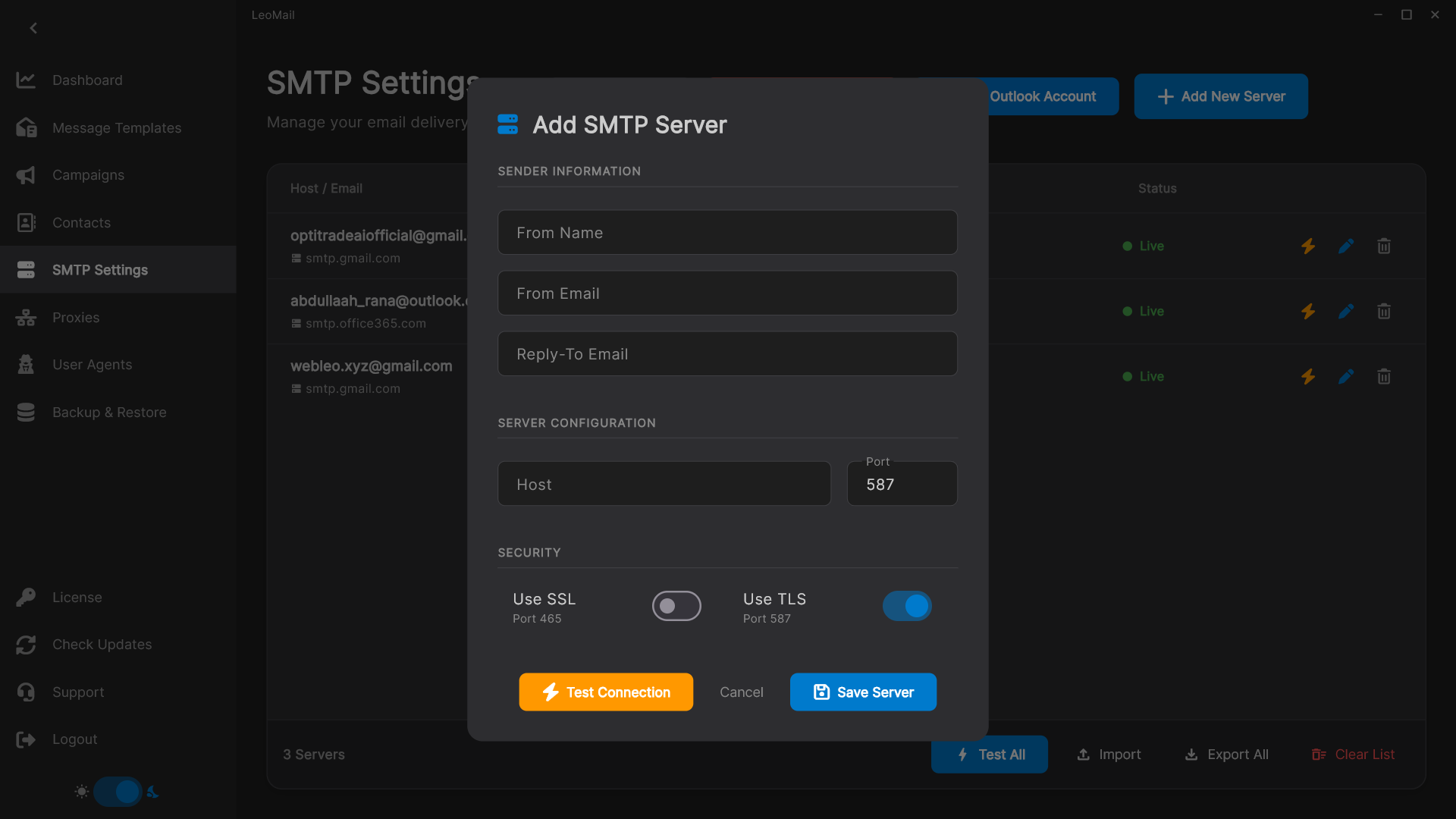
Prepare your contacts and message
Import contacts you are allowed to email. Choose a saved template or write a message, check personalization, and include an unsubscribe option where required.
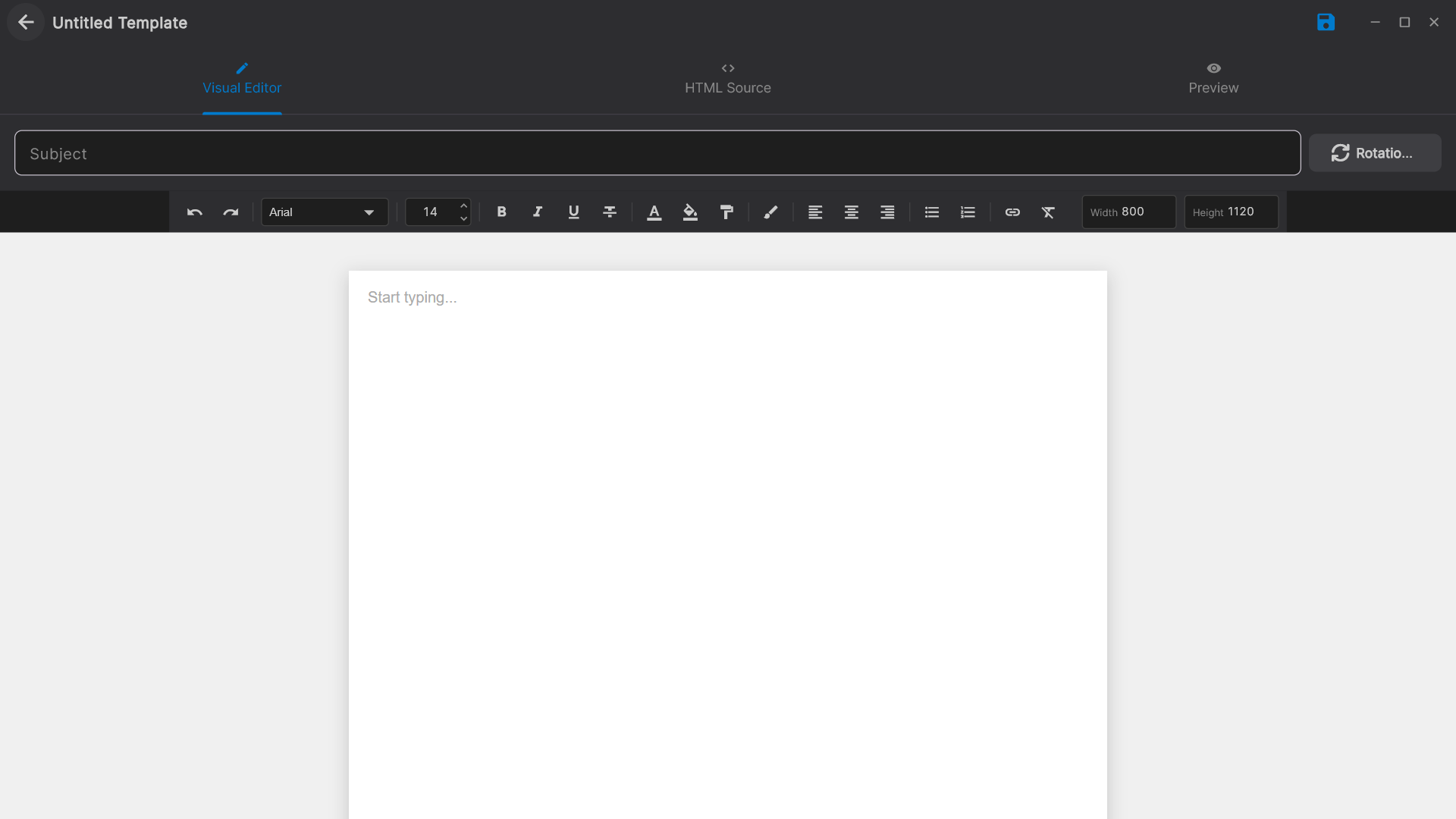
Send a test, then start the campaign
Send to your own test inbox first and check the content and links. Set appropriate sending limits. Keep LeoMail open and your computer awake and online throughout the campaign.
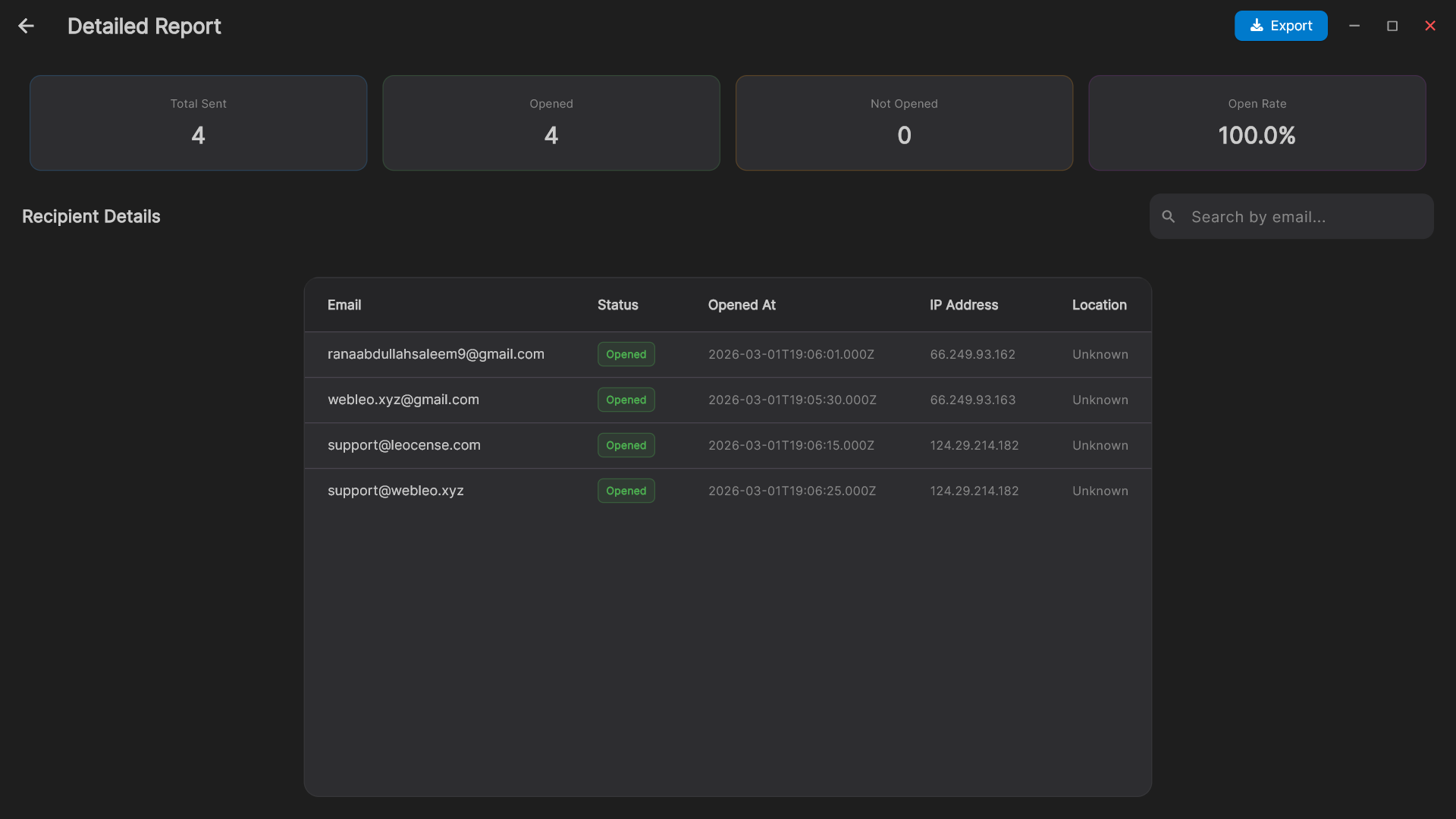
Review the results
Check sending failures and available tracking events. A message accepted by an SMTP server is not proof of inbox placement. Open and click counts may include automated activity.
Check your setup before you commit.
Request a 1-day trial. Share your email and WhatsApp number, and our team will get back to you after review.